
⌥⌘C
Capture mode
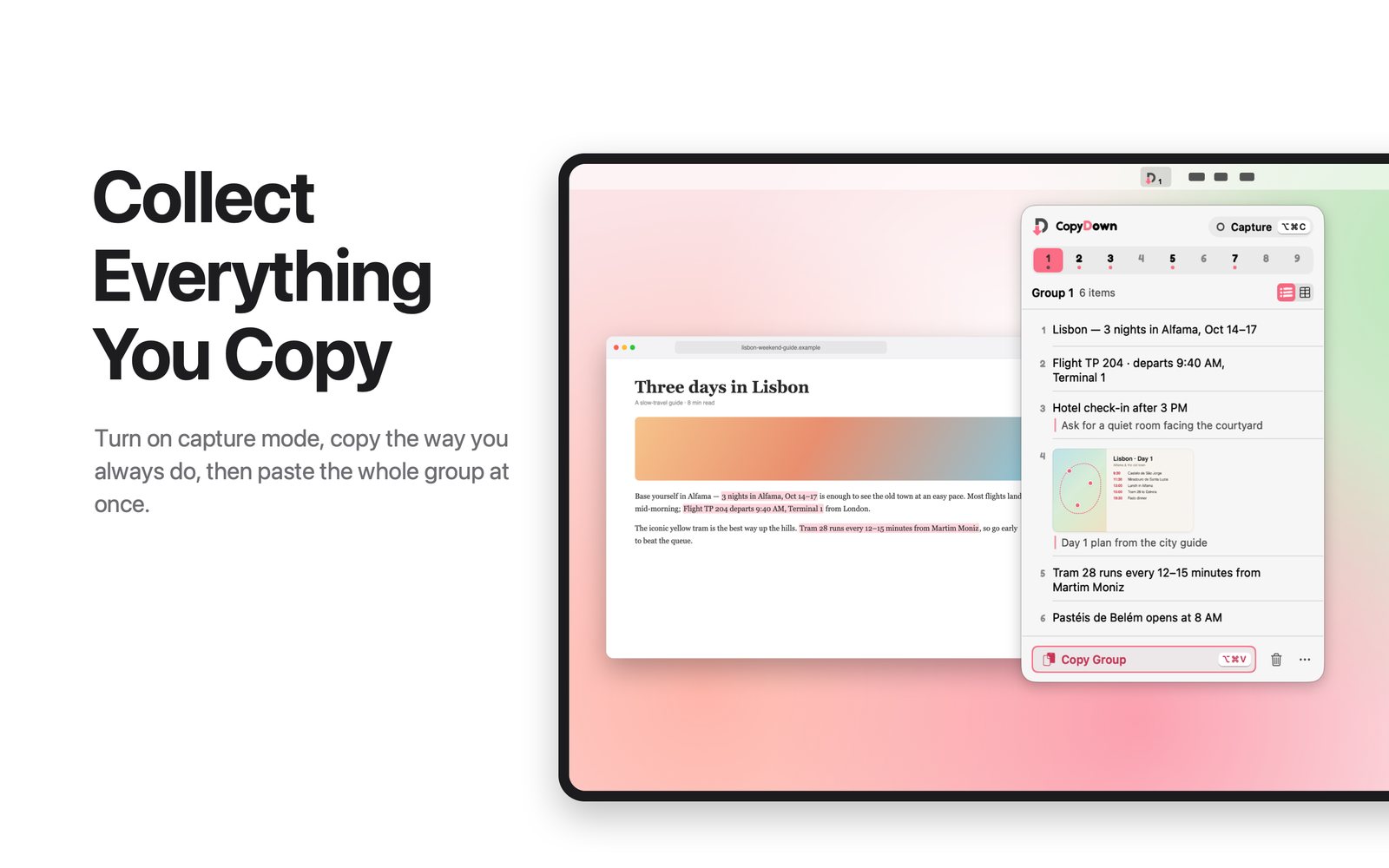
Every ⌘C adds what you copied to your current group. Turn capture off and copying works exactly as normal.

CopyDown for Mac
Turn on capture mode with ⌥⌘C, then copy the way you always do. Every ⌘C adds to your current group. Press ⌥⌘V to copy the whole group and paste it anywhere.
Features
Every ⌘C adds what you copied to your current group. Turn capture off and copying works exactly as normal.
Drag over any part of the screen and the screenshot joins the group. Nothing is saved to your Desktop.
Separate collections for separate tasks. Saved automatically, and still there after you quit or restart your Mac.
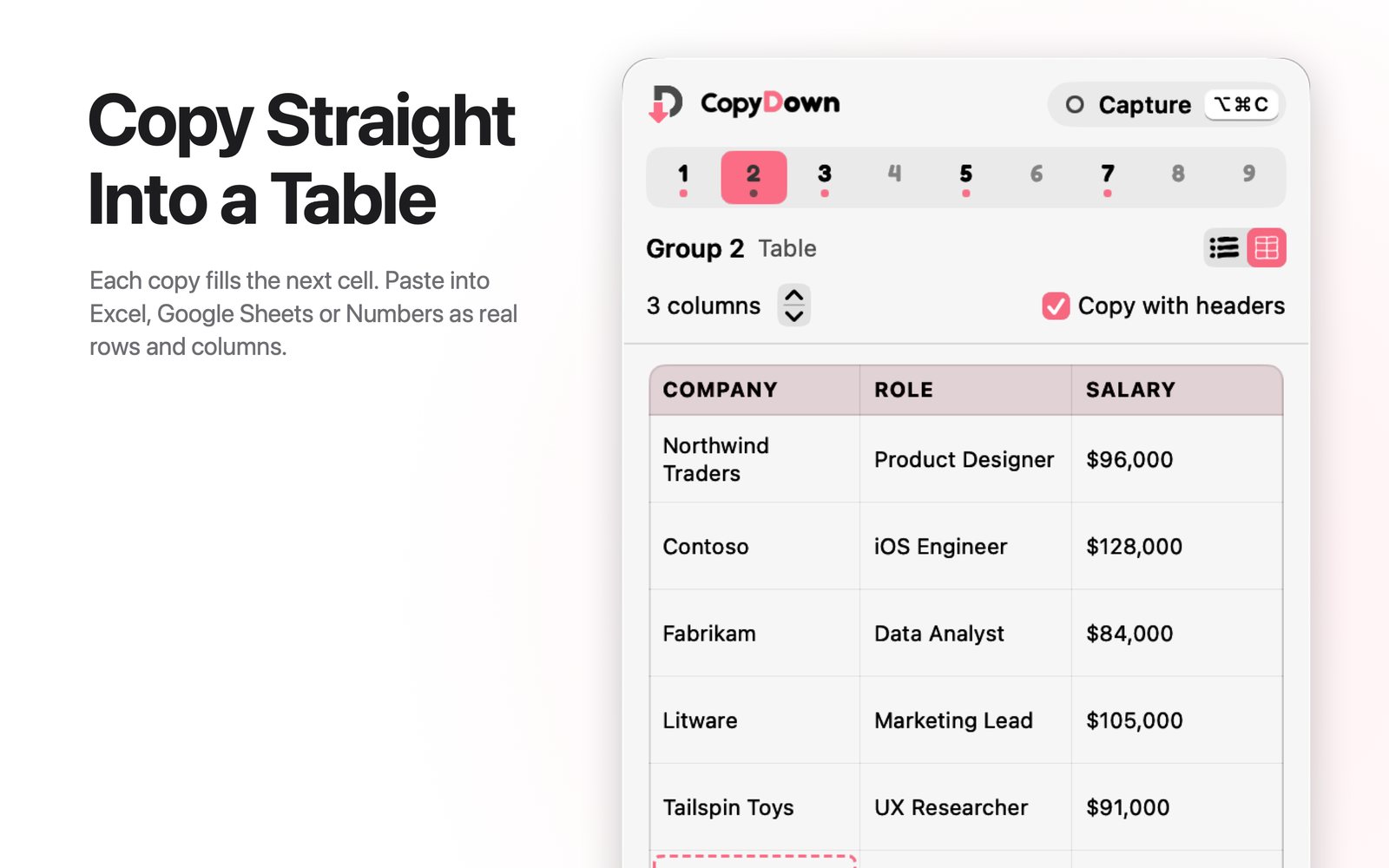
Each copy fills the next cell. Name columns, then paste into Numbers, Excel or Google Sheets as real rows and columns.
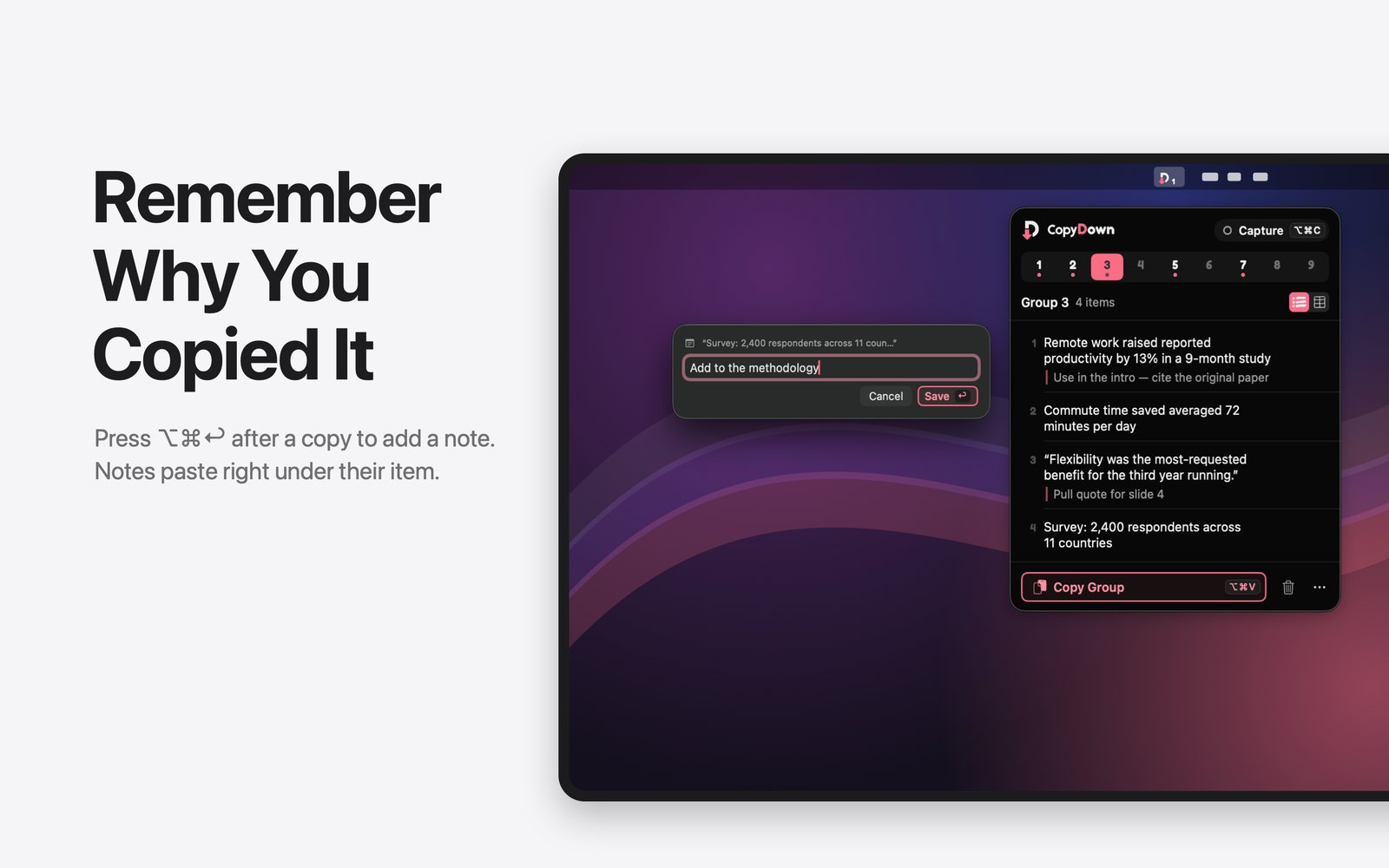
Write a quick note right after a copy. When you paste a list, each note appears indented under its item.
Each item on its own line, or its own paragraph in Notes, Pages, Word and Google Docs.
Reorder by dragging, fix a typo, add or edit notes, delete one item or clear a group from the menu-bar popover.
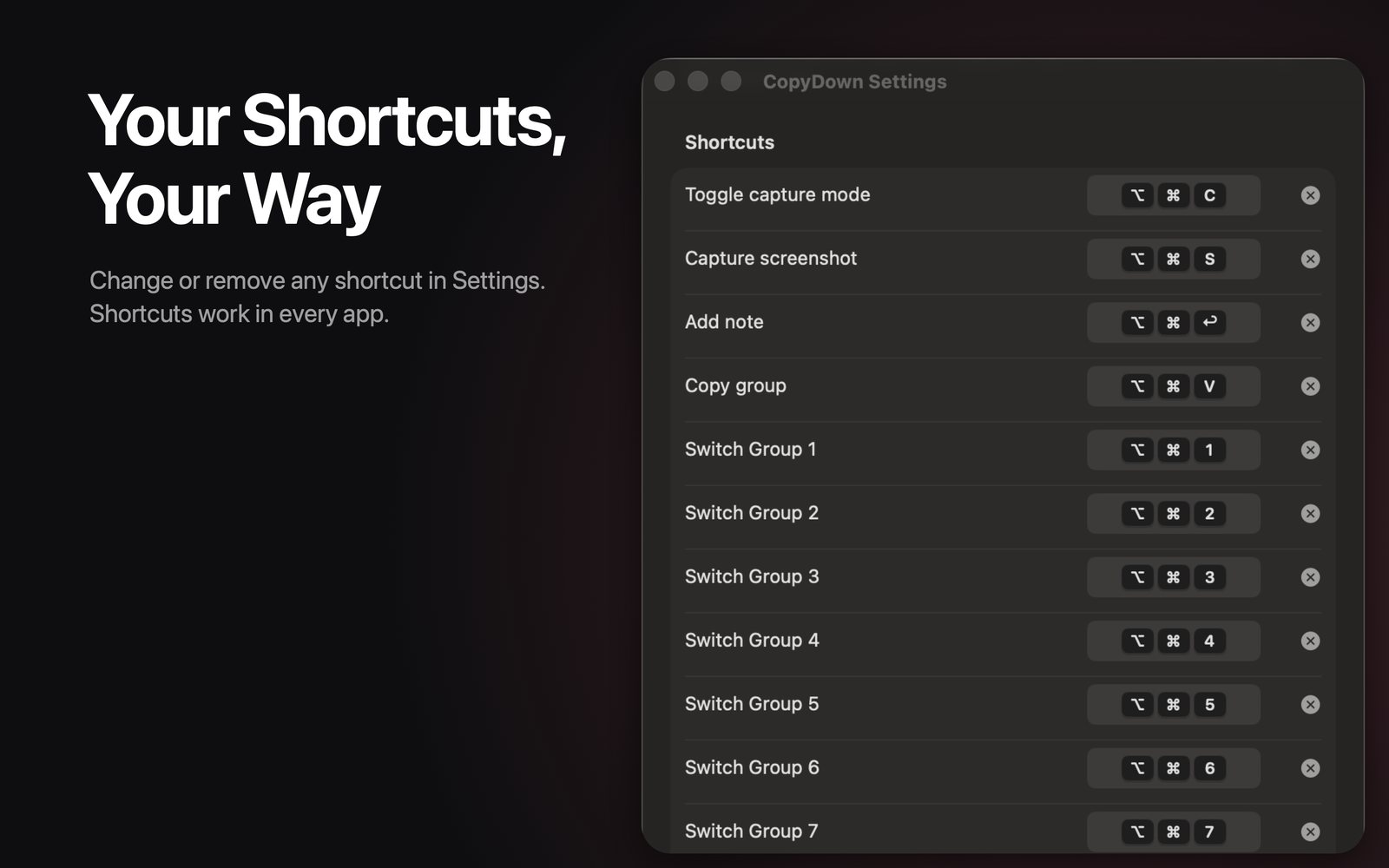
Change or remove any shortcut. Start at login, play optional sounds, or hide on-screen confirmations.
Works entirely on your Mac. No account, no cloud, no tracking.

Shortcuts
CopyDown uses global keyboard shortcuts, so while it’s running a default shortcut overrides the same shortcut in Finder or the app in front. Every CopyDown shortcut can be changed or removed in Settings.
| Shortcut | Action | Overrides |
|---|---|---|
| ⌥ ⌘ C | Toggle capture mode Finder “Copy as Pathname”; Safari and Chrome developer tools | Finder “Copy as Pathname”; Safari and Chrome developer tools |
| ⌥ ⌘ V | Copy group Finder “Move Item Here” and similar commands in some apps | Finder “Move Item Here” and similar commands in some apps |
| ⌥ ⌘ S | Capture screenshot Finder “Show Sidebar”; “Save All” in some editors | Finder “Show Sidebar”; “Save All” in some editors |
| ⌥ ⌘ T | Toggle table mode Finder “Show/Hide Toolbar” | Finder “Show/Hide Toolbar” |
| ⌥ ⌘ ⏎ | Add note App-specific ⌥⌘Return commands (for example in Xcode) | App-specific ⌥⌘Return commands (for example in Xcode) |
| ⌥ ⌘ ⌫ | Clear group Finder “Delete Immediately” | Finder “Delete Immediately” |
| ⌥ ⌘ 0–9 | Show contents, switch group 1–9 App-specific ⌥⌘number commands | App-specific ⌥⌘number commands |
Permissions
macOS 15.4 and later. Capture mode reads what you copy. macOS asks the first time; choose Allow.
Used only for Capture screenshot, only when you drag an area. CopyDown never records your screen in the background. Everything else works without it.
CopyDown 1.0 is in its final stretch. Send us a quick note and we’ll let you know when it’s live.
Requires macOS 14 Sonoma or later · Apple silicon and Intel
FAQ
Something else? Use Give Feedback in the app, email [email protected], or visit the support page.
Only while capture mode is on. Turn it off and ⌘C and ⌘V behave exactly as they always do.
On your Mac. Groups are saved automatically and are still there after you quit or restart. Nothing is sent to a server.
No. CopyDown has no account, no cloud and no tracking. It works entirely on your Mac.
Any app that accepts text. Text and screenshots paste together into Notes, Pages, Mail, TextEdit and Google Docs. Tables paste as real rows and columns into Numbers, Excel and Google Sheets.
Open CopyDown Settings and change or remove it. See the list of known conflicts above.