Capture on
⌥⌘C
⌥⌘C
Step 1
Turn on capture mode
Press Option-Command-C. The menu-bar icon lights up so you always know when CopyDown is collecting.
CopyDown is a small menu-bar app for when one copy isn’t enough. Turn on capture mode, copy the way you always do, then paste the whole collection, text and screenshots in order, with one shortcut.
 1
9:41
1
9:41
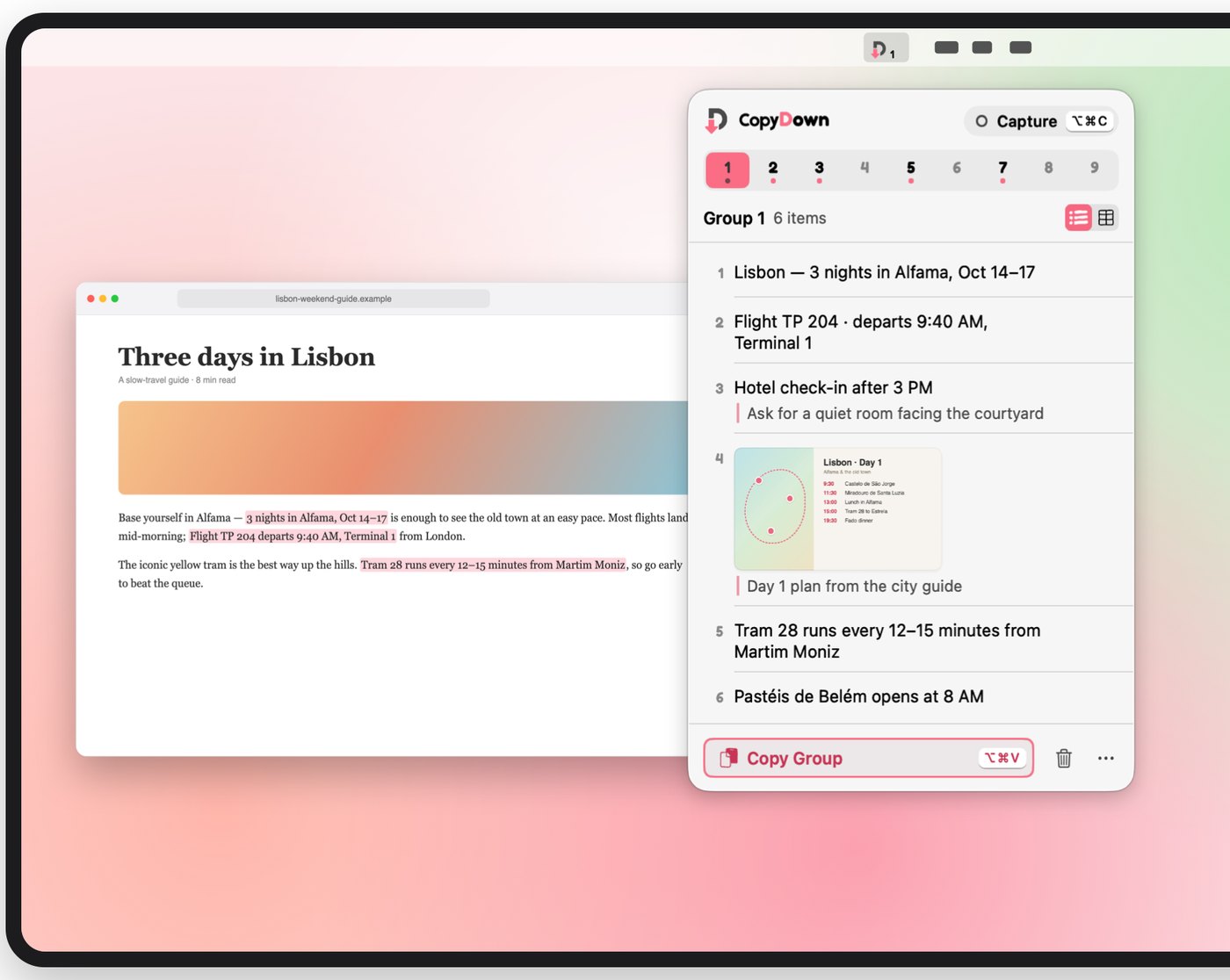
Three days in Lisbon
A slow-travel guide · 6 min read
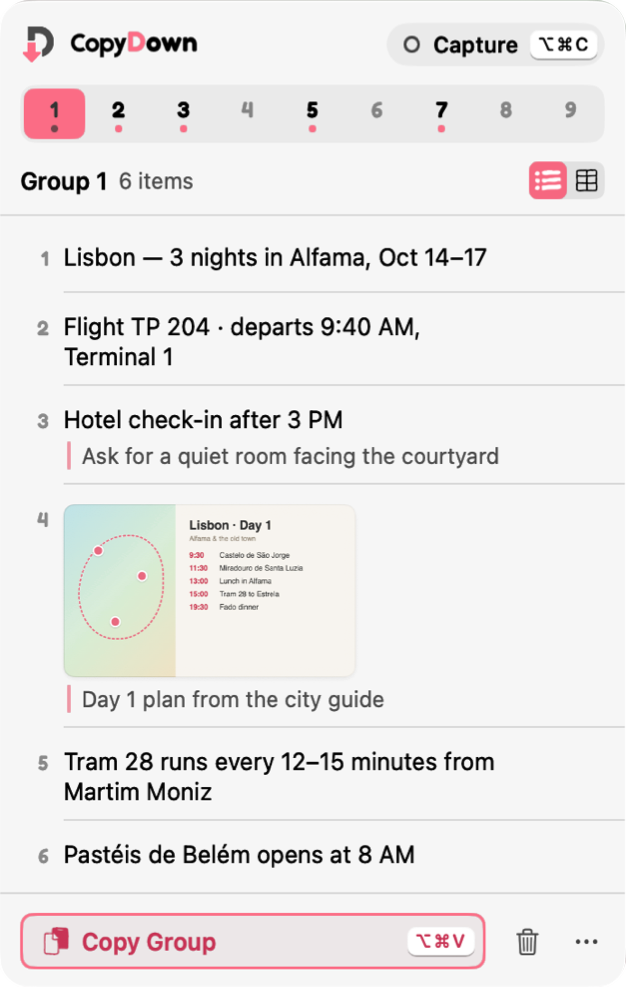
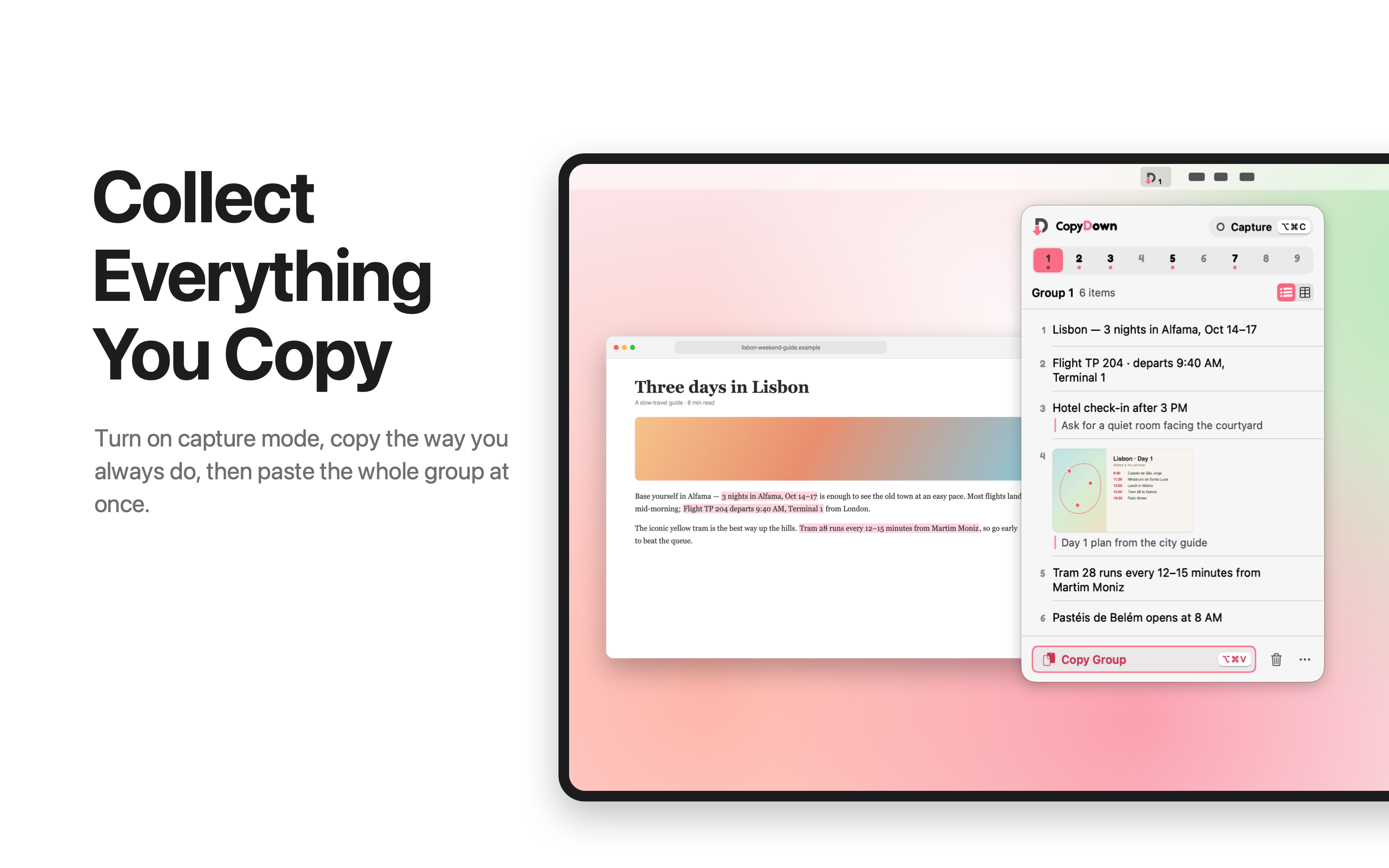
Base yourself in Alfama: 3 nights in Alfama, Oct 14–17 is enough to see the old town at an easy pace. Most flights land mid-morning; Flight TP 204 departs 9:40 AM, Terminal 1 from London.
The iconic yellow tram is the best way up the hills. Tram 28 runs every 12–15 minutes from Martim Moniz, so go early to beat the queue. Pastéis de Belém opens at 8 AM.
Pastes cleanly into
How it works
You already know how to copy. CopyDown just remembers everything you copied, until you’re ready to paste it.
Step 1
Press Option-Command-C. The menu-bar icon lights up so you always know when CopyDown is collecting.
Step 2
Every Command-C adds to your current group: a name, a link, a price, a quote, an error message. Press ⌥⌘S to grab a screenshot too.
Step 3
Press ⌥⌘V to copy the group, then ⌘V anywhere. Turn capture off and copying works exactly as normal.
Try it here
Turn capture on, then select any text below and press ⌘C, or tap a snippet. This is a small in-browser preview; the real app works across every app on your Mac.
We shortlisted Casa do Rio, a meeting room for 20 at €450 per day, a ten-minute walk from the river. The fastest train from Lisbon takes 2 h 50 min, first departure 6:09 AM, and the hotel holds a group rate if we book before April 18.
Or tap to copy
CopyDown
Nothing here yet.
Turn on capture and copy something.
Capture mode is off. Copying works as normal.
Text & screenshots
Press ⌥ ⌘ S and drag over any part of the screen. The screenshot joins the group. Paste into Notes, Pages, Mail, TextEdit or Google Docs and your text and screenshots arrive together, in the order you collected them.
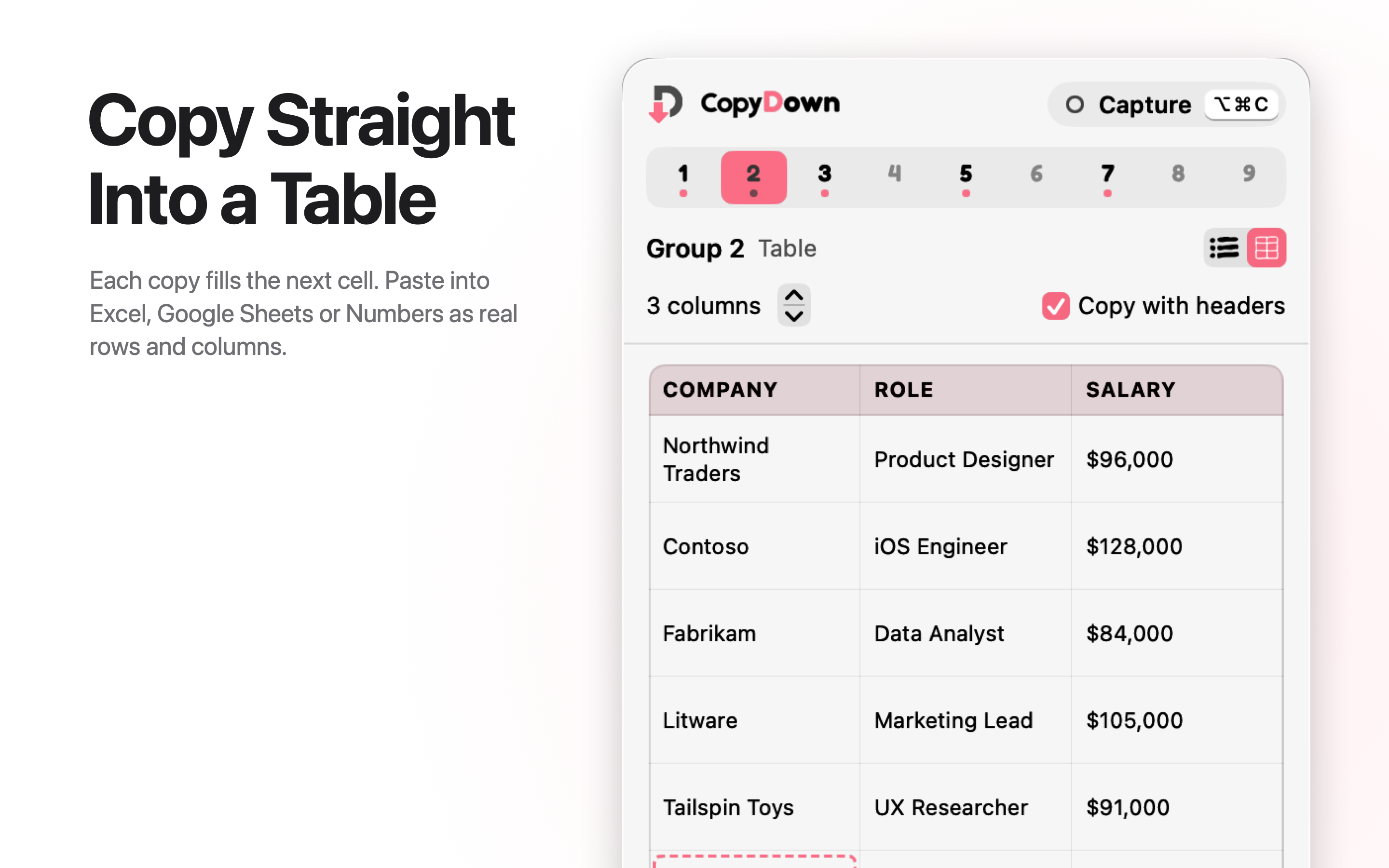
| A | B | C | |
|---|---|---|---|
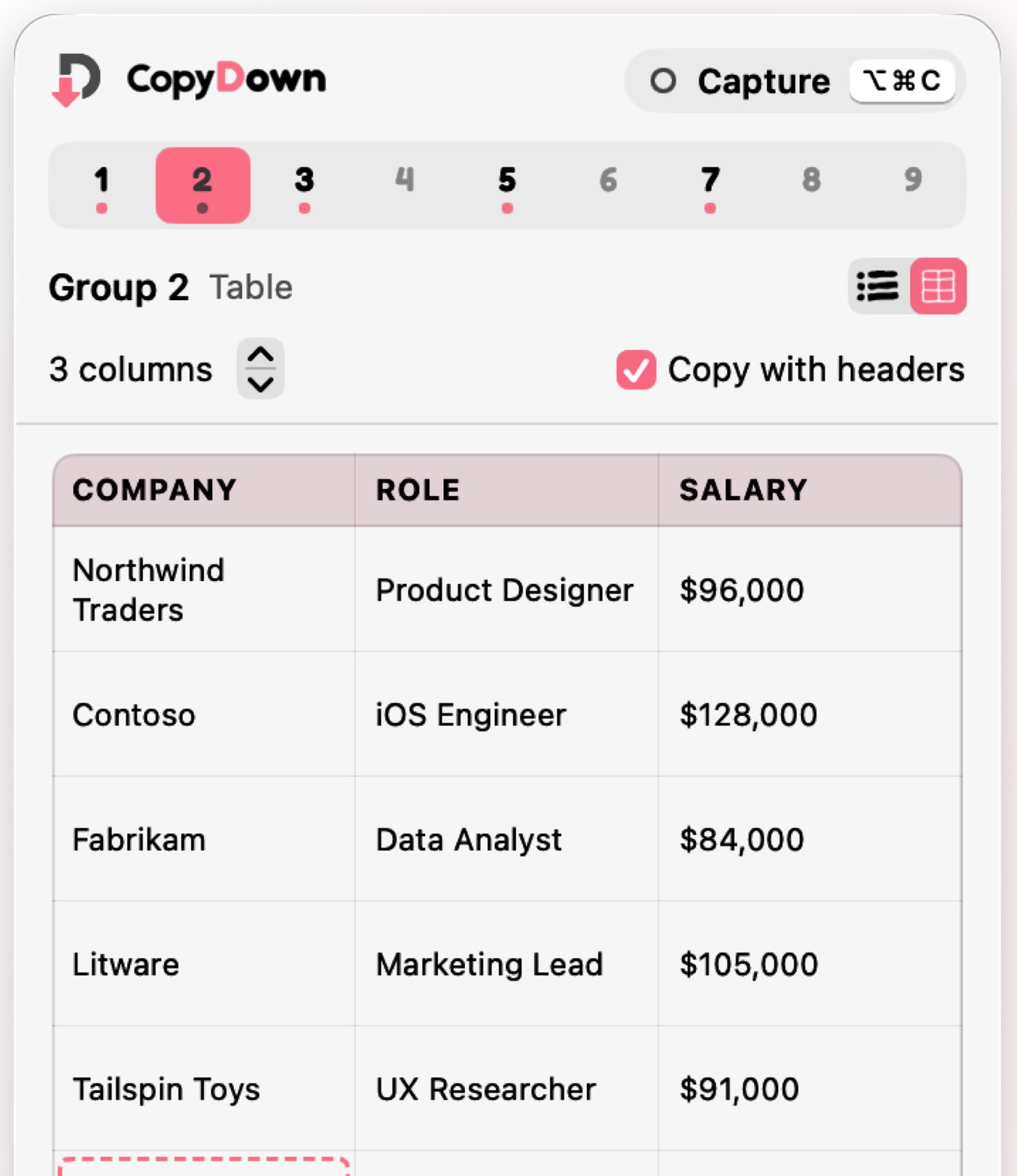
| 1 | Company | Role | Salary |
| 2 | Northwind Traders | Product Designer | $96,000 |
| 3 | Contoso | iOS Engineer | $128,000 |
| 4 | Fabrikam | Data Analyst | $84,000 |
Table mode
Switch a group to Table mode with ⌥ ⌘ T and each copy fills the next cell, left to right, then the next row. Name your columns and paste into Numbers, Excel or Google Sheets as real rows and columns, with the header row if you want it.
Notes
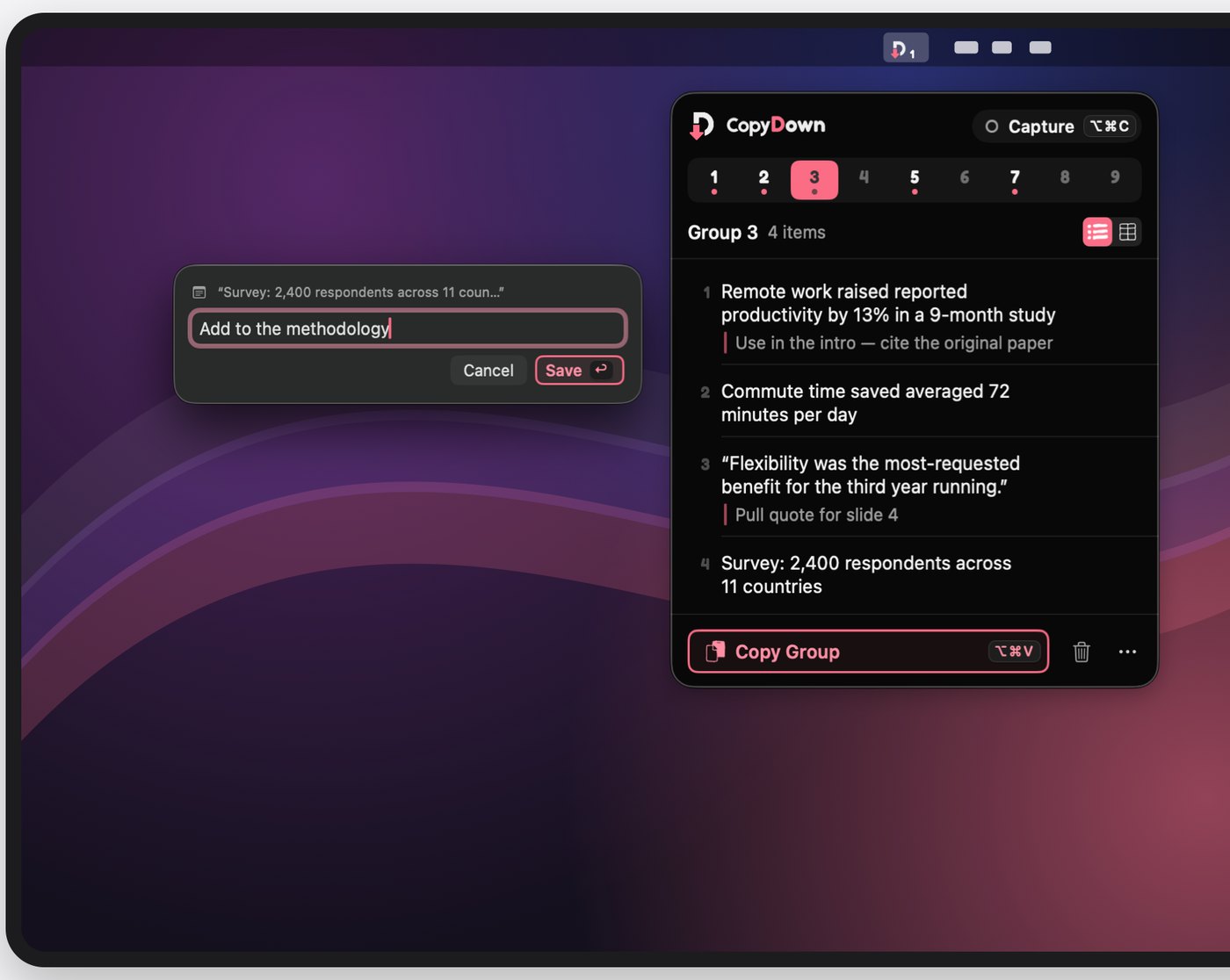
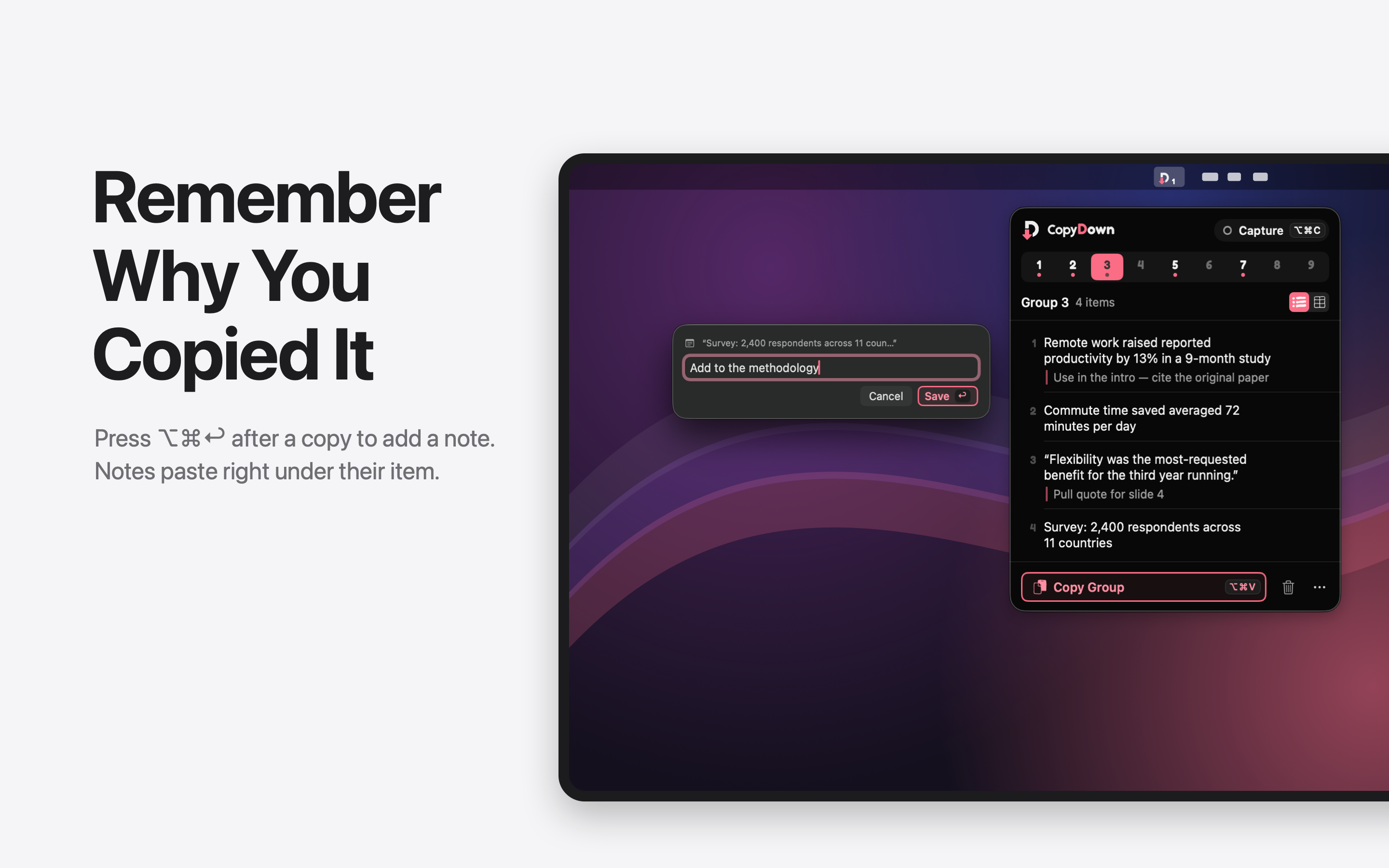
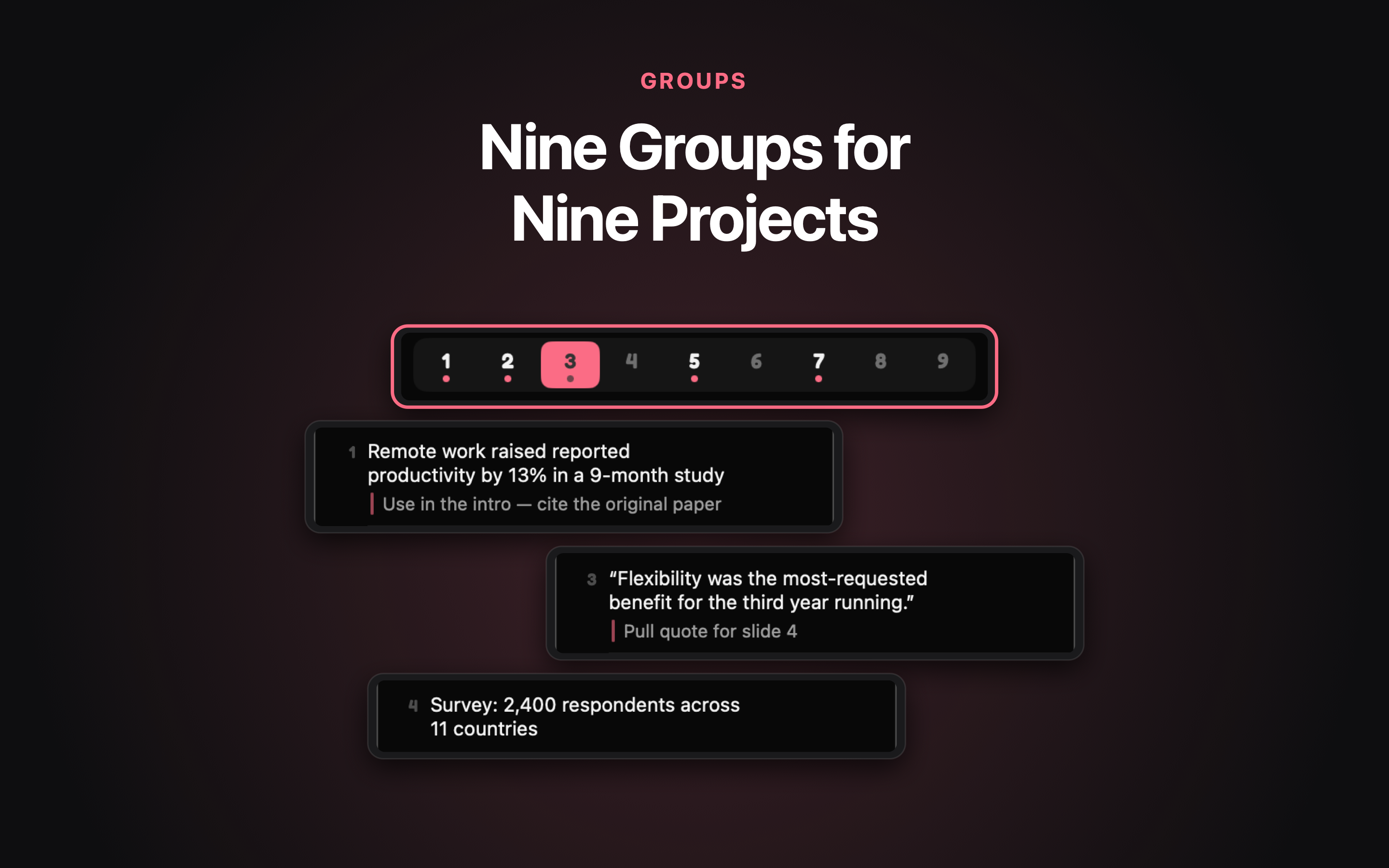
Press ⌥ ⌘ ⏎ right after a copy to write a quick note about it. When you paste the list, each note appears indented under its item.
Pastes as
Use in the intro. Cite the original paper.
Add to the methodology
Built for real work
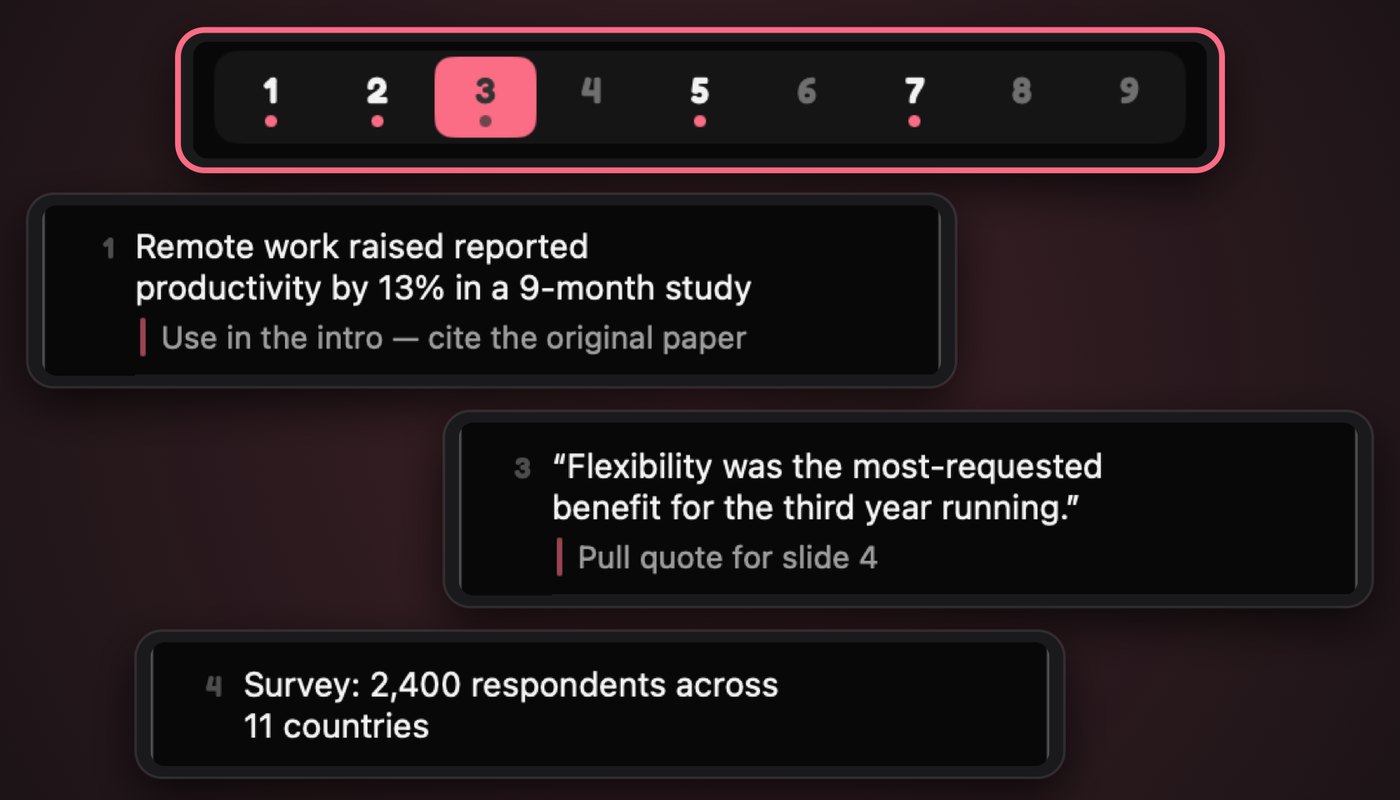
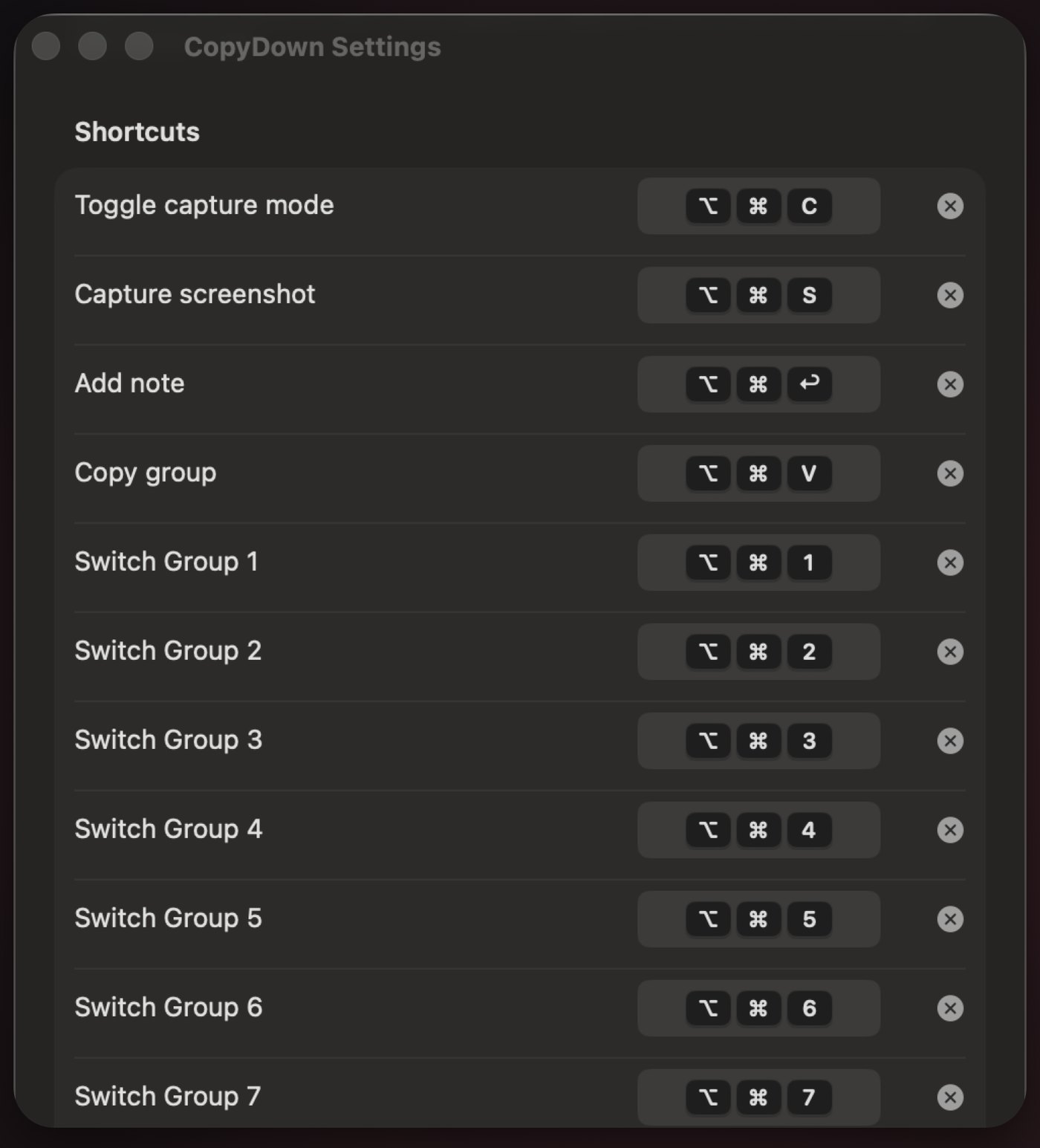
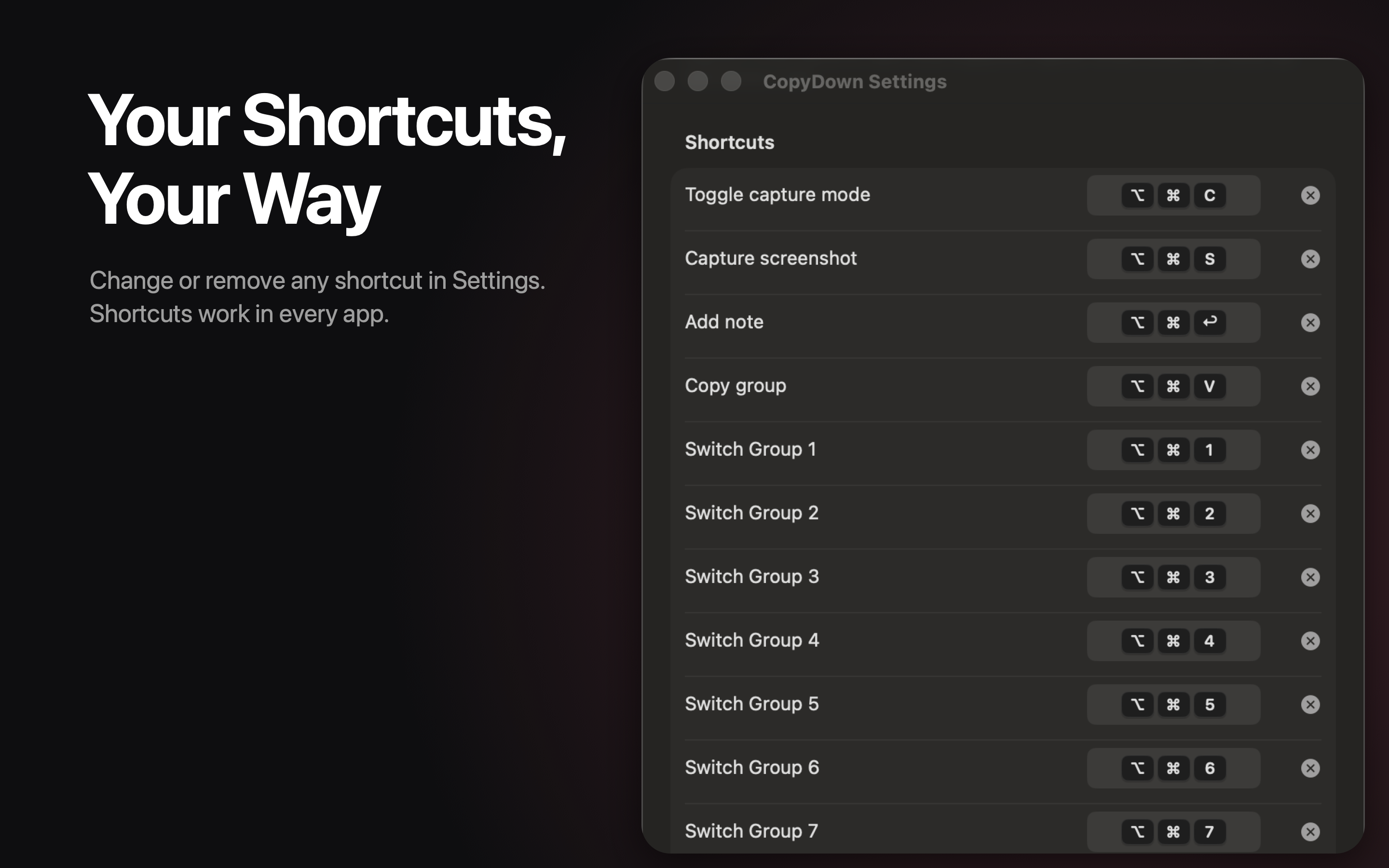
Keep separate collections for separate tasks and switch with ⌥⌘1 to 9. Every shortcut can be changed or removed in Settings.
A trip, a report, a job search. Everything is saved automatically and is still there after you quit or restart your Mac.
Change or remove any shortcut. Launch at login, optional sounds, and on-screen confirmations you can hide.
Private by design
CopyDown works entirely on your Mac. It only reads what you copy while capture mode is on, and only takes a screenshot when you ask it to.
Read the privacy policy100% on-device
No servers involved
No account
Open it and go
No cloud
Nothing is uploaded
No tracking
No analytics, no ads
Gallery

About DevMind
DevMind Consulting LLC is an independent software company. We design and build our own products, starting with CopyDown, and we help businesses work out where AI genuinely helps, then build it with them.
Being small is a feature: the people who answer your email are the people who write the code.
Menu-bar app for macOS that collects text and screenshots into groups and tables. Coming to the Mac App Store.
Workshops, prototypes and production integrations of large language models into real business workflows.
We’re prototyping more small, focused tools for Mac and mobile. Quality over quantity.
01
We don’t collect what we don’t need. CopyDown runs entirely on your Mac.
02
No layers, no hand-offs. You work directly with the engineers.
03
Software that does one job well and feels at home on the platform.
04
Every “Give Feedback” message is read by the people building the app.
CopyDown 1.0 launch
Final polish and Mac App Store release of our first product.
AI consulting engagements
Helping teams move from “we should use AI” to something that works in production.
CopyDown updates
Improvements driven by what users tell us. Send yours from the app.
Questions about CopyDown, a project you’d like help with, or just an idea. We read every message and reply as soon as we can.